Proxypass for websockets
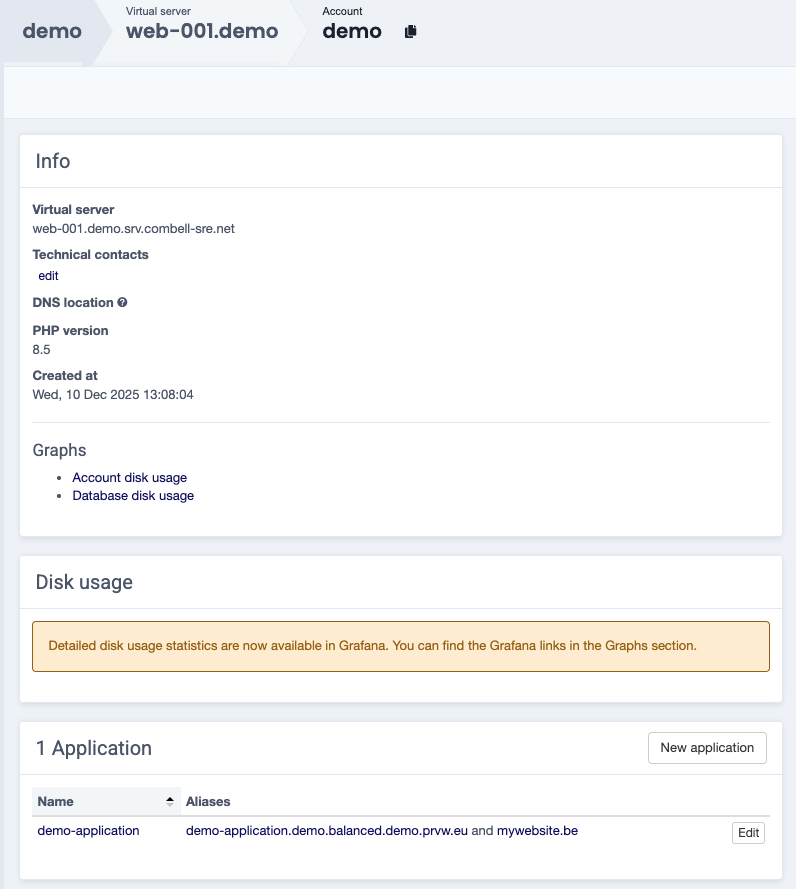
Navigate to the account for which you want to configure the websocket proxypass.
Select Edit in the Application widget, next to the application you wish to add the websocket proxypass to.
The value to enter in the proxypass field depends on the webserver of your account.
Not sure which webserver your account uses?
In Sock, your account uses Apache if the Apache graphs are included on the account's page.
To check for Nginx, run the following command from the command line as your user:
pstree | grep -E '[n]ginx|[a]pache2?|[h]ttpd|[v]arnishd'
If varnishd is included in the output, keep in mind the setup might use Apache and/or Nginx.
If unsure, please contact our support.
Enter the proxypass in the following format:
http://<ip>:<port>

Enter the proxypass in the following format:
ws://<ip>:<port>

Confirm your changes by updating the application at the bottom of the page.